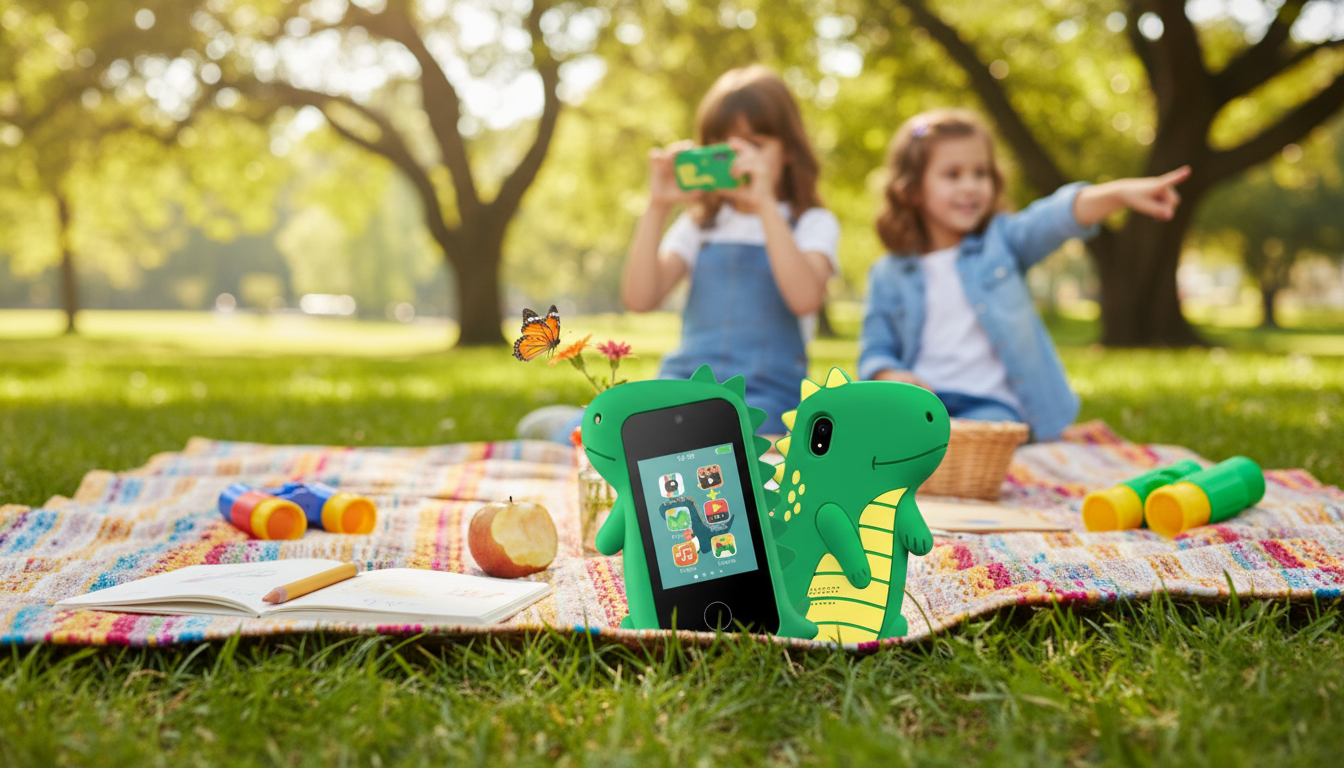
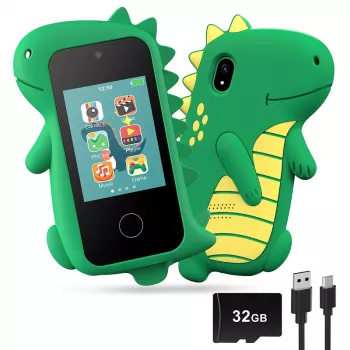
A kid-friendly smart phone with dual cameras can be a fun first device for photos, simple games, and everyday routines—while giving parents a practical way to introduce healthy tech habits. Dual cameras make it easy for kids to switch between selfies and “what I see” shots, which keeps the experience creative instead of complicated. Below, you’ll find what dual cameras add for kids, what to check before buying, and how to set the device up for age-appropriate use from day one.
Dual cameras (front + rear) are a small feature that can make a first phone feel much more intuitive for children. Instead of twisting a device around or asking for help, kids can easily choose the camera that matches what they’re trying to capture.
For kids, the “best” phone usually isn’t the fastest or fanciest—it’s the one that’s easiest to use safely and hardest to break. A few practical checks up front can prevent most day-to-day frustrations.
For family media boundaries, it can help to write down a simple plan everyone understands. The American Academy of Pediatrics offers a helpful resource here: Family Media Plan.
A dual-camera phone becomes more meaningful when it’s tied to small routines and “missions.” Kids get the fun of taking pictures, and parents get teachable moments that build responsibility.
Clear rules beat complicated rules—especially for young kids. Aim for a short list that is easy to remember, and review it briefly each week.
For privacy basics related to children and online services, the FTC’s COPPA overview is a solid reference: Children’s Online Privacy Protection Rule (COPPA). For practical, age-based app guidance, Common Sense Media also offers parent resources: Parent Guides.
| Category | What to check | Why it matters for kids |
|---|---|---|
| Cameras | Front and rear camera access is simple | Encourages independent use without constant help |
| Durability | Shock protection / case compatibility | Reduces damage from drops and rough play |
| Battery | Holds up through light play + photo sessions | Less frustration and fewer mid-day charges |
| Storage | Space for photos/videos (and easy cleanup) | Prevents “storage full” interruptions |
| Controls | App approvals, time limits, content restrictions | Supports healthy boundaries and safer use |
| Privacy | Clear permission prompts for camera/mic/location | Helps minimize accidental oversharing |
| Audio | Speaker and headphone support | Makes stories/music practical in shared spaces |
| Comfort | Size and grip for small hands | Better handling and fewer drops |
It depends more on maturity than grade level: preschoolers can use it with close supervision, early elementary kids do well with firm time limits and a small app set, and older kids can handle more independence if they follow clear rules. Starting with approved contacts and a short list of allowed apps usually works best.
Set simple rules around consent (ask before taking photos), keep sharing limited to trusted family, and avoid personal details like school names, addresses, or identifiable uniforms. Disable unnecessary location sharing and regularly review which apps have camera, microphone, and location permissions.
Photos are usually manageable, but videos can fill storage quickly—especially if kids record lots of short clips. A weekly cleanup and backup habit prevents the “storage full” surprise and keeps the gallery easy for kids to navigate.





Leave a comment